Start with create-playcanvas
create-playcanvas is the official scaffolding tool for code-based PlayCanvas projects. It creates a Vite and TypeScript project for the PlayCanvas Engine, React, or Web Components and includes a runnable starter scene.
Create a Project
Run the creator with your preferred package manager:
# npm
npm create playcanvas@latest

# pnpm
pnpm create playcanvas@latest

# Yarn
yarn create playcanvas

# Bun
bun x create-playcanvas@latest
Follow the prompts to name the project, choose an authoring format, and select a starter. The creator requires Node.js 22.23.2 or later when using npm, pnpm, or Yarn.
After the files are created, install the dependencies and start the Vite development server:
cd my-playcanvas-project
npm install
npm run dev
When you are ready to deploy, run npm run build to create a production build. Its URLs are relative, so it works from any folder on a server, not only from the root of a domain.
Choose a Format
Every format uses TypeScript and includes Vite, ESLint, Prettier, and a production build.
| Format | Use it when |
|---|---|
| Engine | You want to work directly with the playcanvas API. |
| React | You are building a React application with @playcanvas/react. |
| Web Components | You want declarative custom elements from @playcanvas/web-components. |
Choose a Starter
The creator provides the same runnable starters for every format:
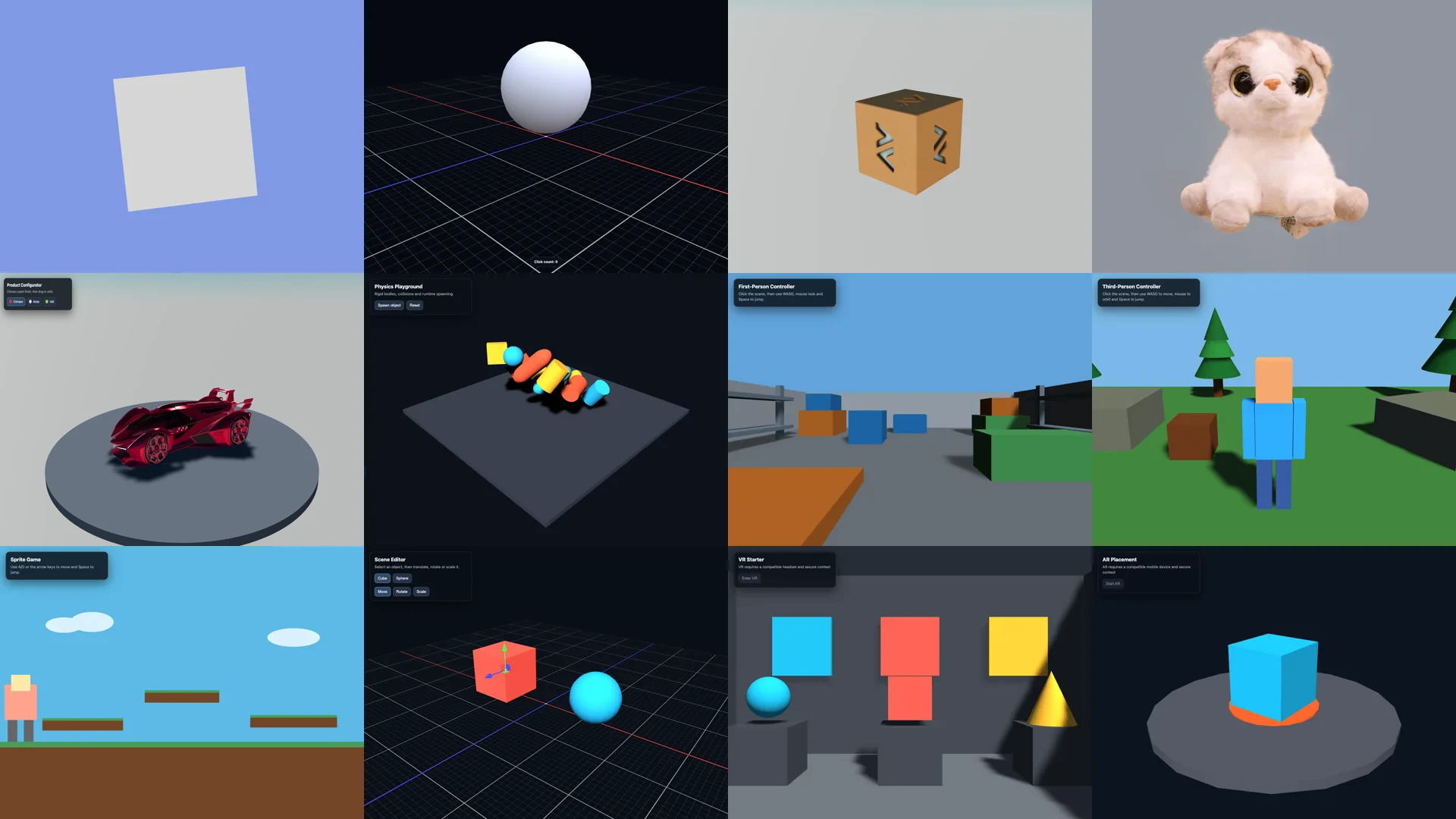
| Category | Starters |
|---|---|
| Basics | Spinning Cube, Interactive Sphere |
| Viewers | Model Viewer, Splat Viewer, Product Configurator |
| Games | Physics Playground, First-Person Controller, Third-Person Controller, Sprite Game, Snapchat Web Lens |
| Tools | Scene Editor |
| XR | VR Starter, AR Placement |
Choose the starter closest to the application you want to build, run it unchanged first, and then replace its assets and behavior incrementally.
Snapchat Web Lens Starter
The Snapchat Web Lens starter is a portrait game set up to run inside Snapchat as a Web Lens:
npm create playcanvas@latest my-lens -- --starter web-lens
It is set up for Snap's platform requirements: a portrait layout that keeps the heads-up display (HUD) clear of Snapchat's controls, relative URLs in the build, and no requests to other hosts. Through the Web Lens API, it submits each run to the leaderboard, keeps the player's best score in Snapchat storage, and shows their Bitmoji. Outside Snapchat, the API answers from a built-in stub, so the game runs in any browser.
To make it your own, replace the game in src/dodge-game.ts and keep the rest. The project's README lists which files to replace and which to keep.
When your game is ready, package it:
npm run package
This builds the game, checks the build against Snap's upload rules, and writes a zip to dist/. If a check fails, it names the file to fix and writes no zip. Upload the zip through My Lenses, following Snap's Publishing guide.
To publish an Editor project as a Web Lens instead, see Snapchat Web Lenses.
Debug with the Inspector
The development server loads the Inspector for the running application. Press the backquote key (`) to show or hide it, F9 to pause, and F10 to step one frame. Production builds do not include the Inspector.
Skip the Prompts
Pass a project name, format, and starter to create a project non-interactively:
npm create playcanvas@latest my-viewer -- -f react -s model-viewer
When there is no terminal to answer the prompts, as when an AI coding agent or an automated build runs the command, the creator takes the defaults for any option you do not pass, as --yes does. It still stops with an error when a choice has no safe default, such as a non-empty target directory without --overwrite.
| Option | Shorthand | Purpose |
|---|---|---|
--format <name> | -f | Choose engine, react, or web-components. |
--starter <name> | -s | Choose one of the starters above. |
--yes | -y | Accept the default Engine and Spinning Cube choices. |
--no-skills | Omit the PlayCanvas Skills included by default. | |
--overwrite | Replace files in a non-empty target directory. | |
--help | -h | Show the current command options. |
--overwrite removes existing files from the target directory. Use a new directory unless you intend to replace its contents.
Included PlayCanvas Skills
New projects include PlayCanvas Skills under .claude/skills/ and .agents/skills/. Compatible AI coding agents can use them to follow PlayCanvas-specific workflows for application setup, assets, scenes, animation, lighting, effects, rendering verification, performance, and runtime inspection.
Pass --no-skills only when the project does not use an AI coding agent or you manage the skills through another installation route.
Next Steps
- For the direct Engine API, continue with Using the Engine Standalone.
- For React, continue with Building a Scene.
- For Web Components, continue with Building a Scene.